Gaia GPS Free Routing App
Before Your Ride
For these instructions you will use the Gaia GPS app on your phone.
If you do not already have Gaia GPS installed, download and install the app before your trip.
Gaia GPS website:
Gaia GPS
Android:
Download Gaia GPS from Google Play
iPhone:
Download Gaia GPS from the App Store
You only need the free version for the route-following method described below.
Using Gaia GPS for Today's Ride
Each day's route can be downloaded directly from your One Life Japan itinerary and opened in Gaia GPS.
The GPX file contains both the track you will follow and the place markers used for that day's ride.
You do not need to prepare all of the routes in advance. You can download and import the route you need each day.
Step 1 - Download Today's Route
On your One Life Japan itinerary, find the route you have chosen for the day and tap Download GPX.
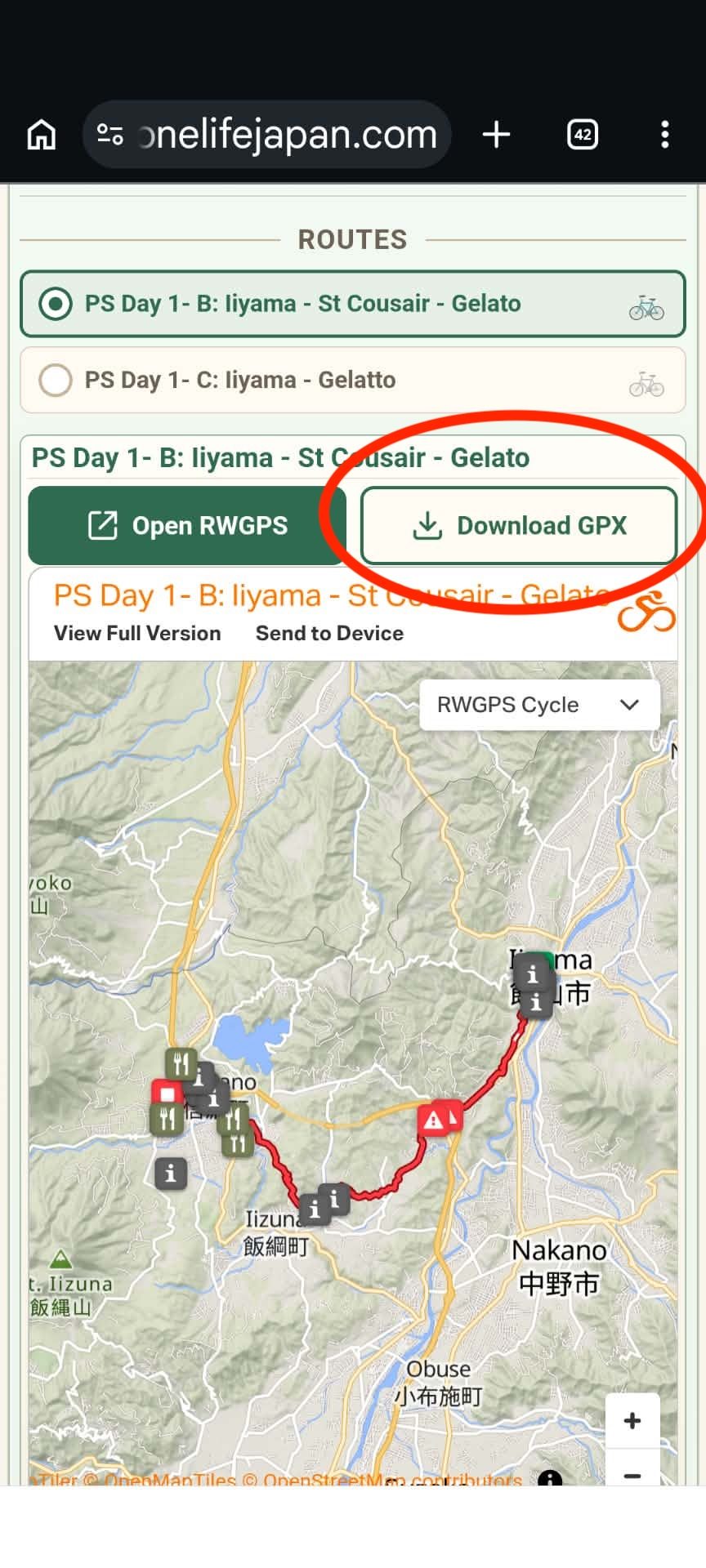
Your phone will download the GPX file.
If you have previously downloaded the same route, Android may ask whether you want to download the file again. Tap Download again.
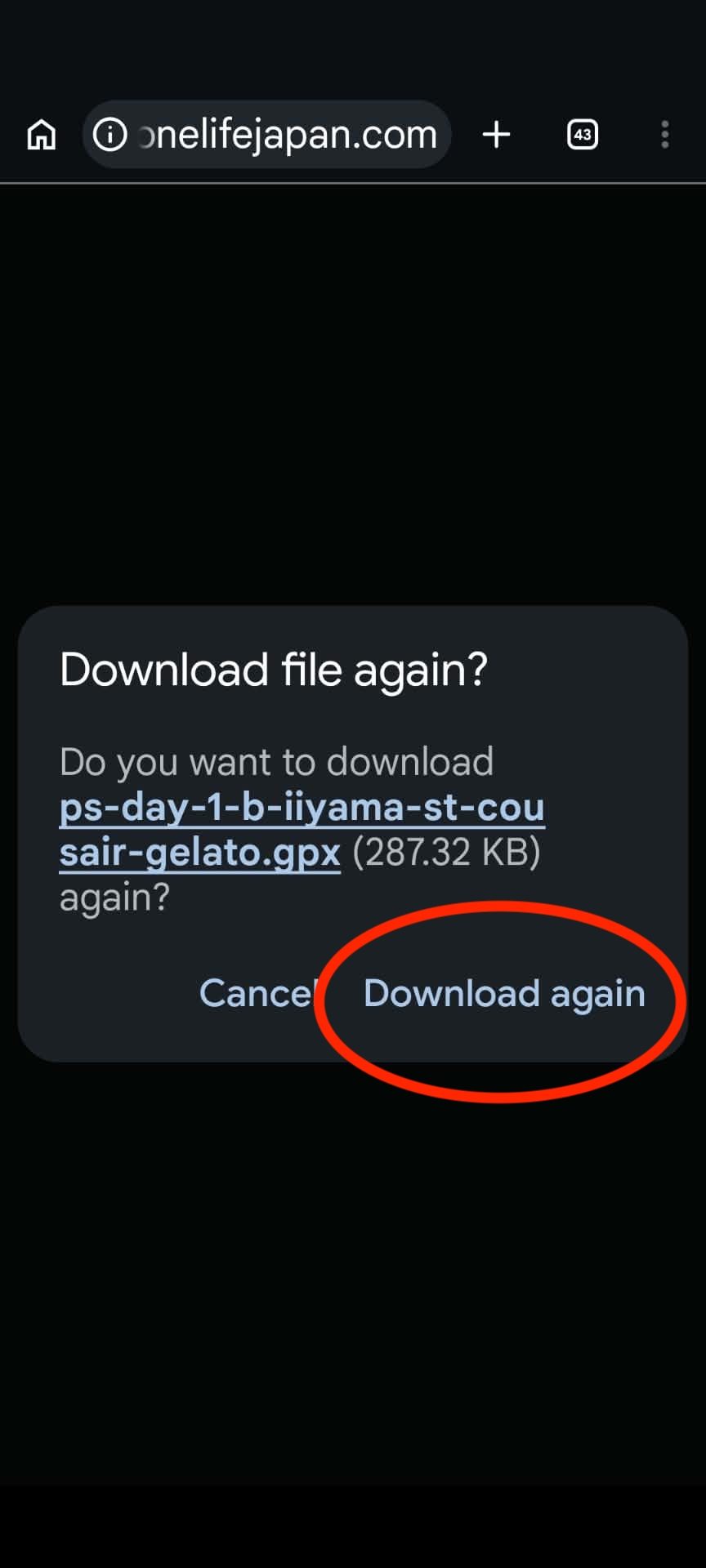
You do not need to open the downloaded file from your browser. You will import it from inside Gaia GPS.
Step 2 - Import the GPX File into Gaia
Open Gaia GPS and tap Saved at the bottom of the screen.
On the Saved screen, tap the three dots in the upper-right corner, then tap Import File.
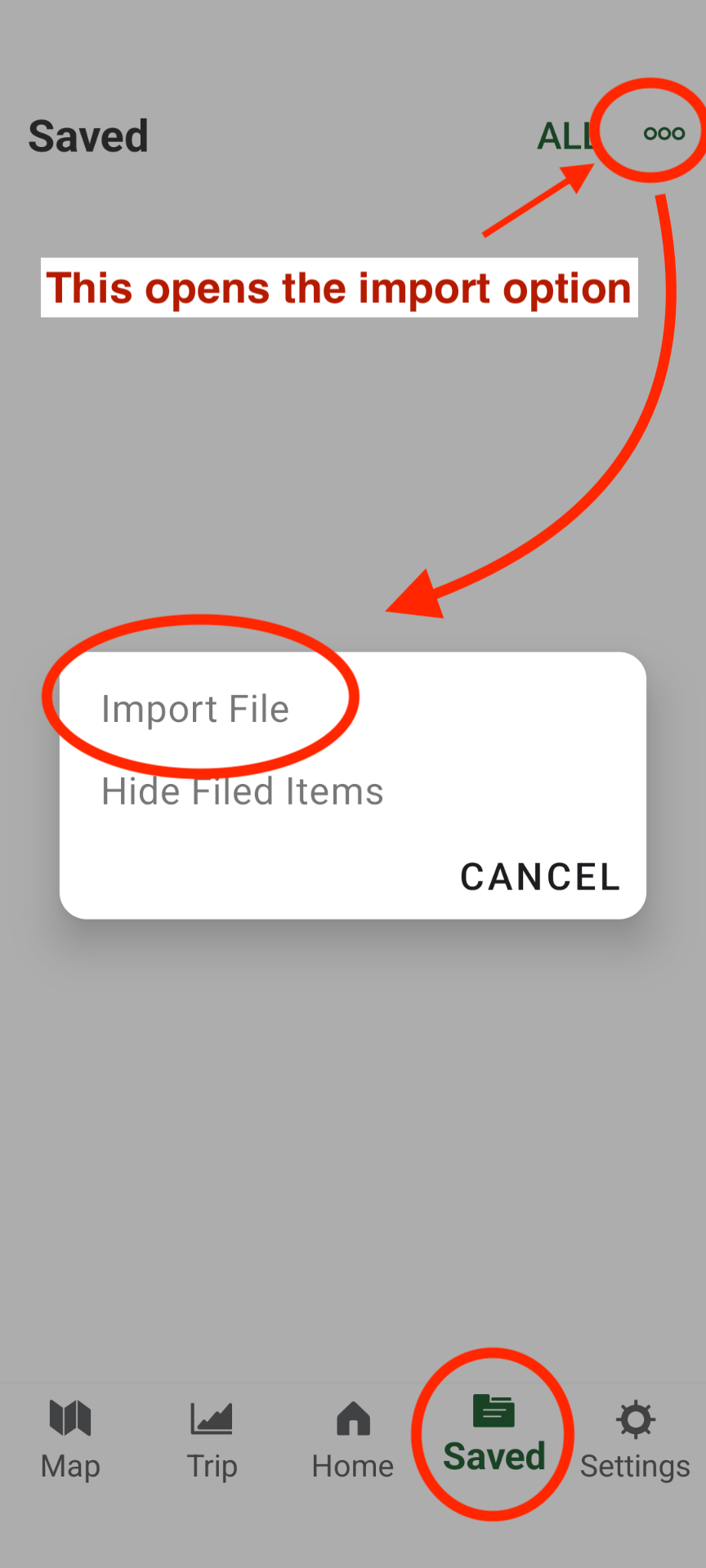
Android will open the files stored on your phone.
Find the GPX file you just downloaded. The filename will normally be similar to the name of the route in your One Life Japan itinerary.
Tap the GPX file to import it into Gaia.
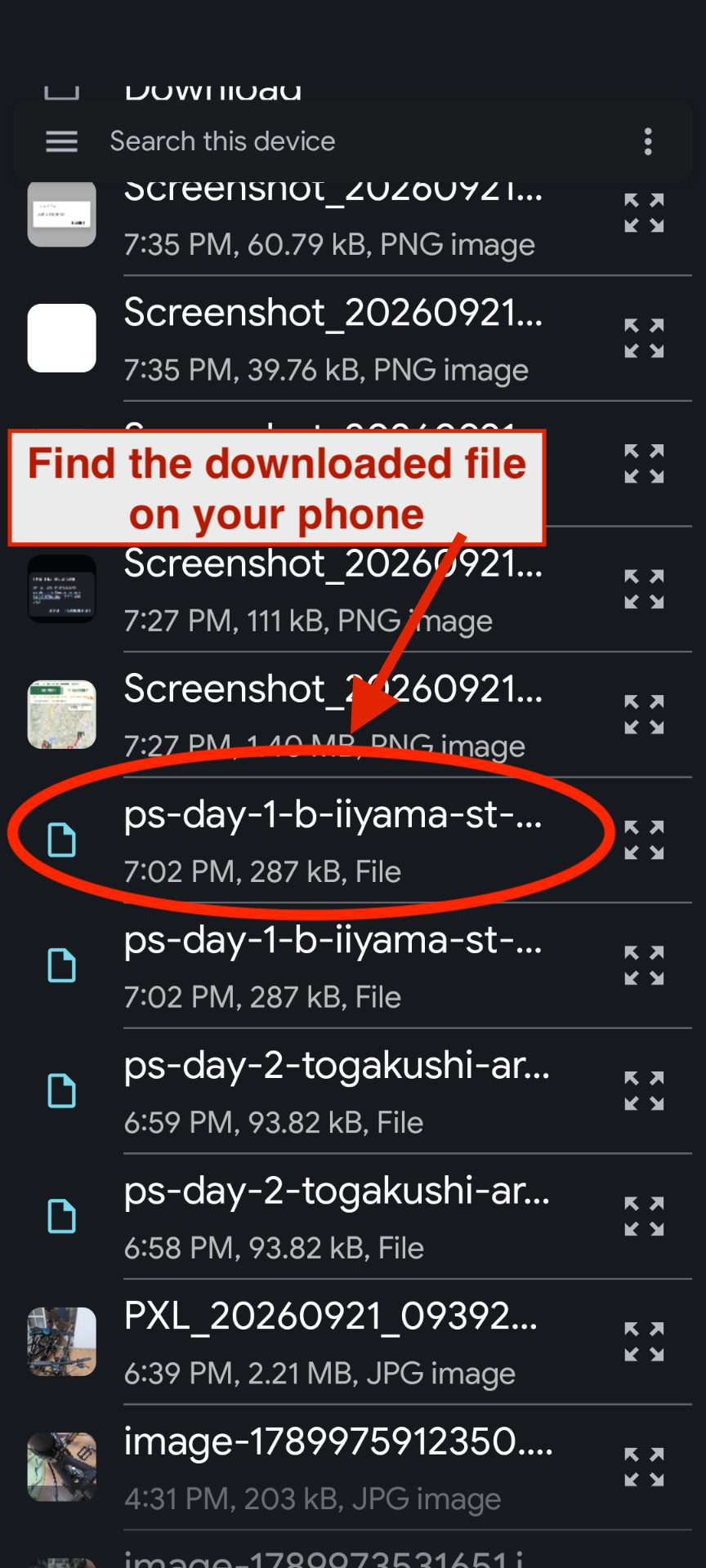
Gaia will import the day's track and place markers.
Step 3 - Find Today's Track
After importing the GPX file, Gaia will show the track together with all of the place markers included in the file.
Find the track you want to navigate and tap it to open it.
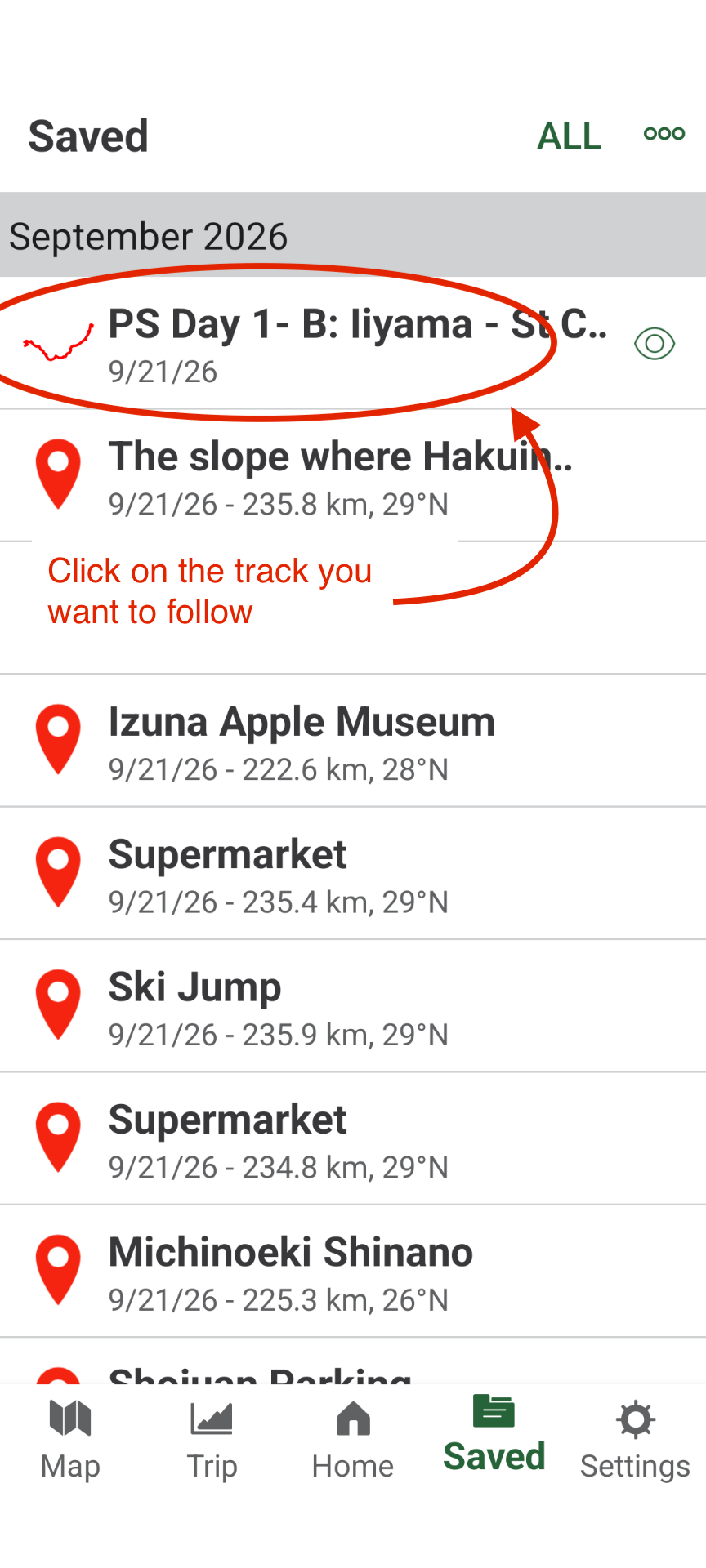
Hint:
If there are a lot of place markers and you are having trouble finding the track, you can filter the Saved screen to show only tracks.
Tap the filter at the top of the Saved screen and select Tracks.
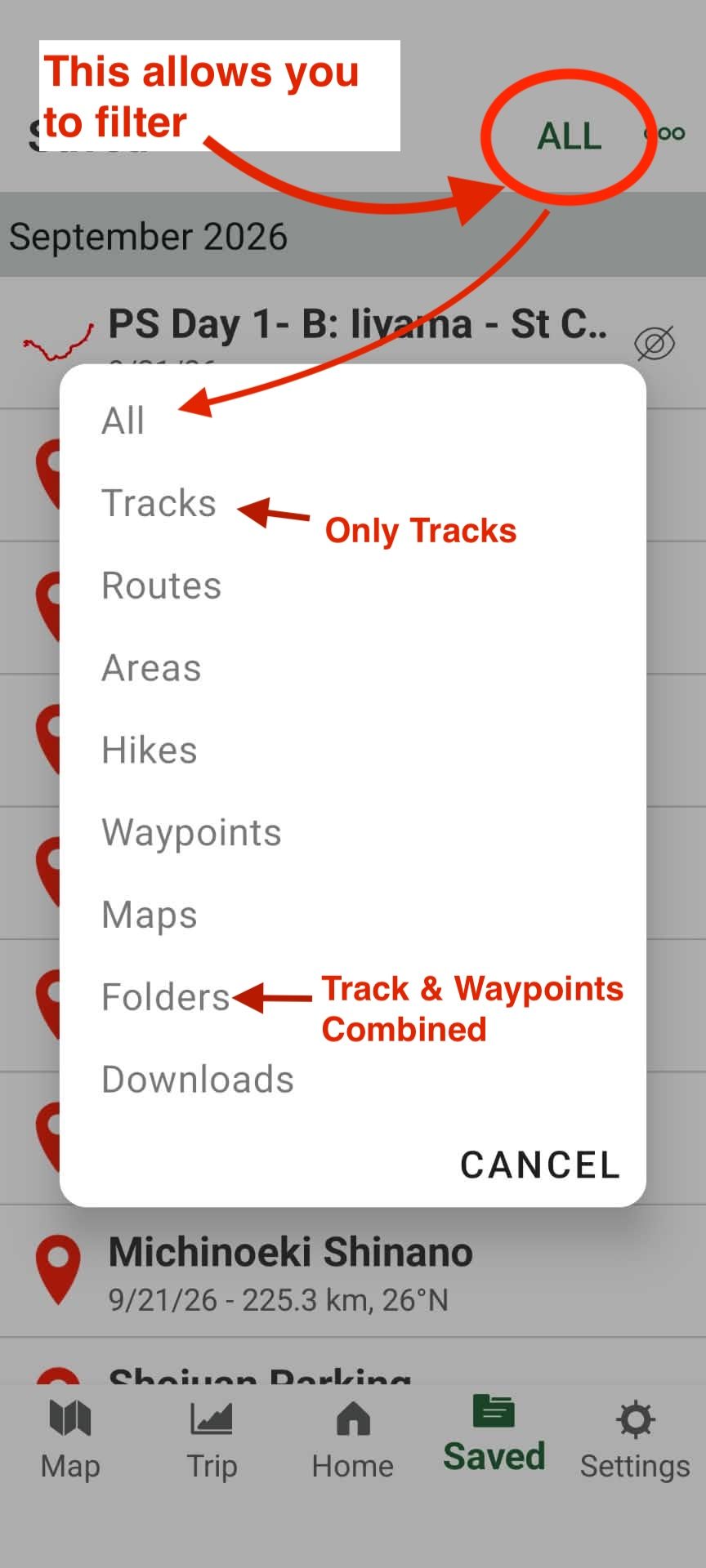
This hides the individual place markers from the Saved list, making the track easier to find.
Step 4 - Start Navigation
After opening today's track, you will see the track information and several options.
Tap Guide Me.
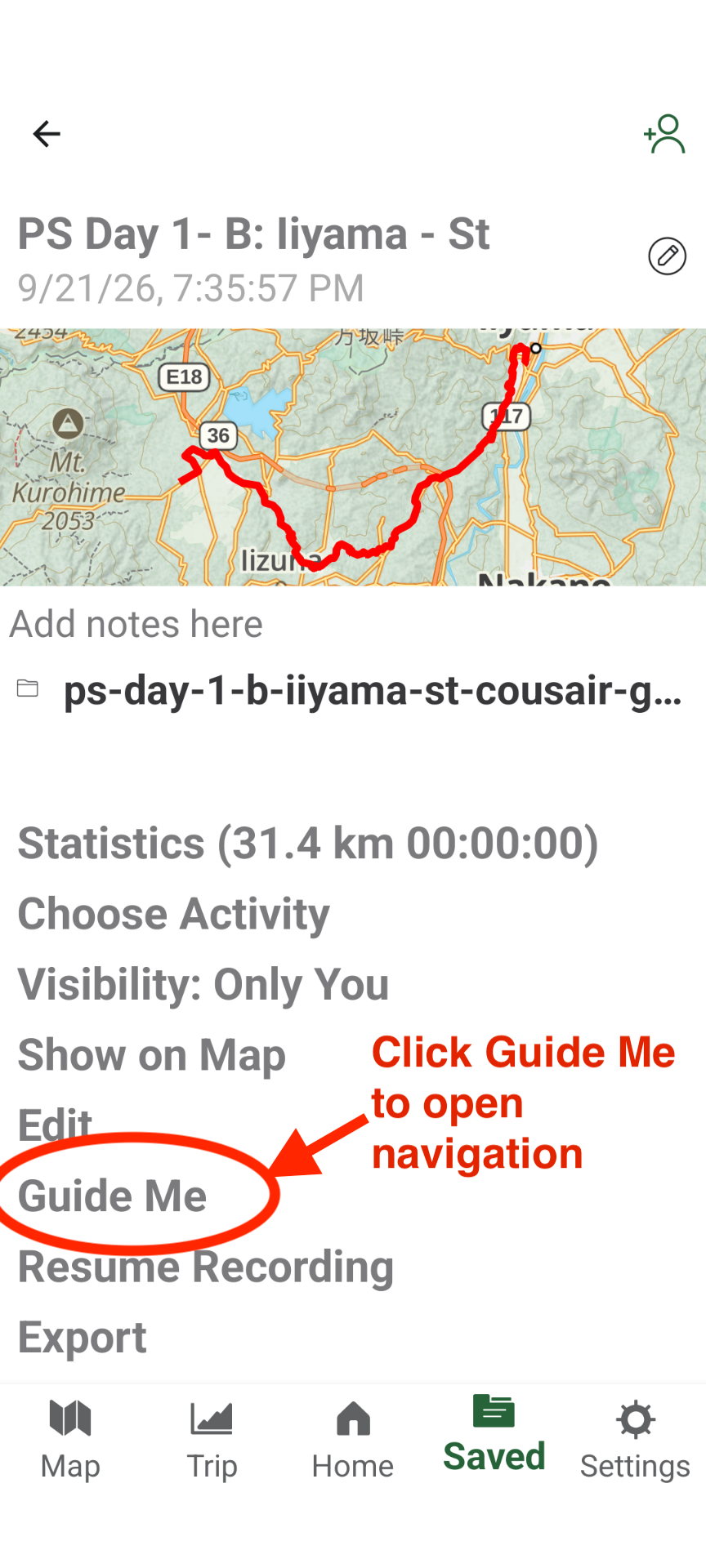
Gaia will open the map with the route displayed.
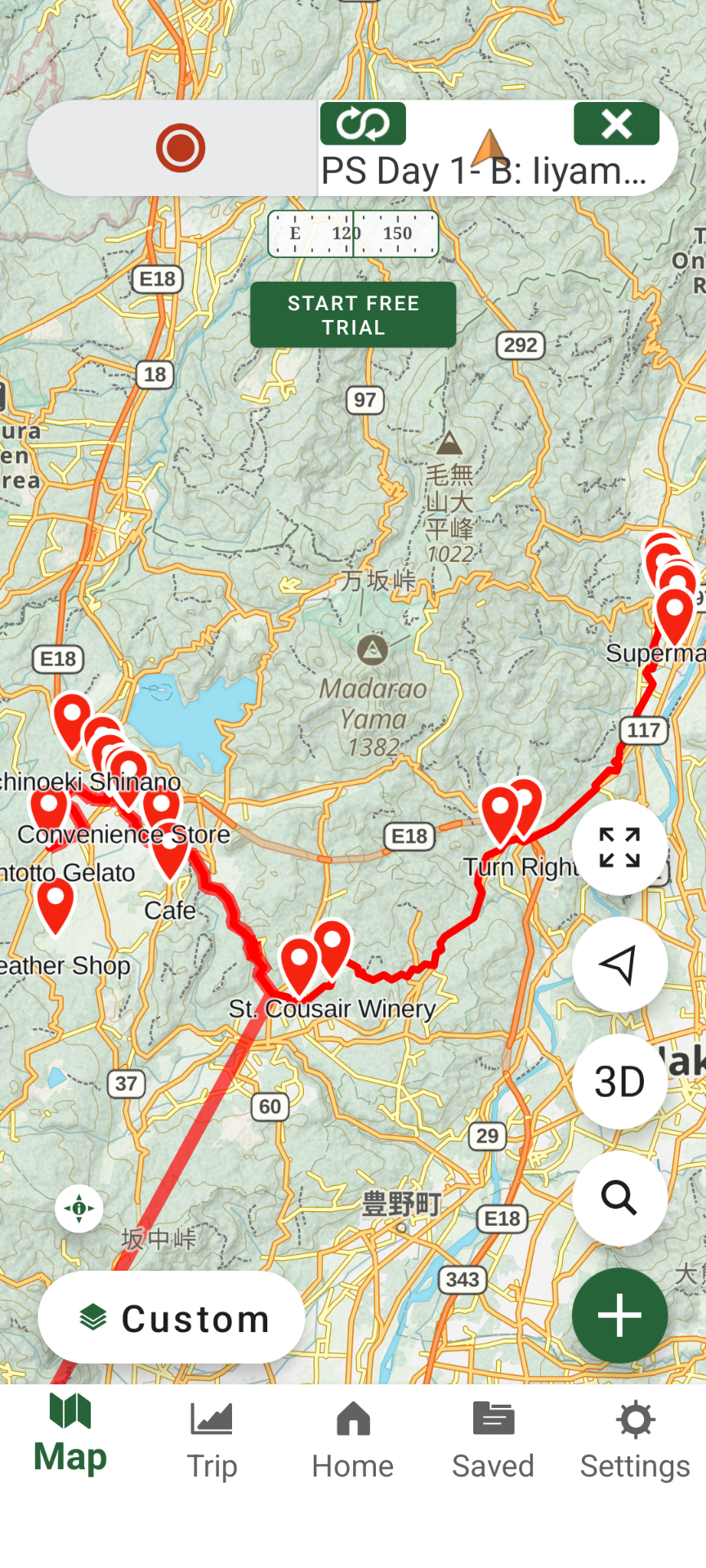
You can now use Gaia to follow the route while you ride.
What You Will See on the Map
The red line is the track you are following.
The place markers are locations included with the route, such as shops, food stops, sights, cautions and other useful points.
Both the track and these place markers came from the GPX file you imported.
Step 5 - Hide Today's Route When You Are Done
When you finish the ride, you may want to remove today's track and place markers from the map before importing another day's route.
There is one important thing to understand:
Hiding only the track does not hide its place markers.
If you select Tracks and tap the eye beside the track, the red route line will disappear, but its place markers can remain on the map.
The easier way to clear the whole day's route is to use its Folder.
Go to Saved and use the filter at the top to select Folders.
Find the folder for the route you imported. The folder contains the imported track and its associated place markers.
Tap the eye icon beside the folder to hide the entire collection from the map.
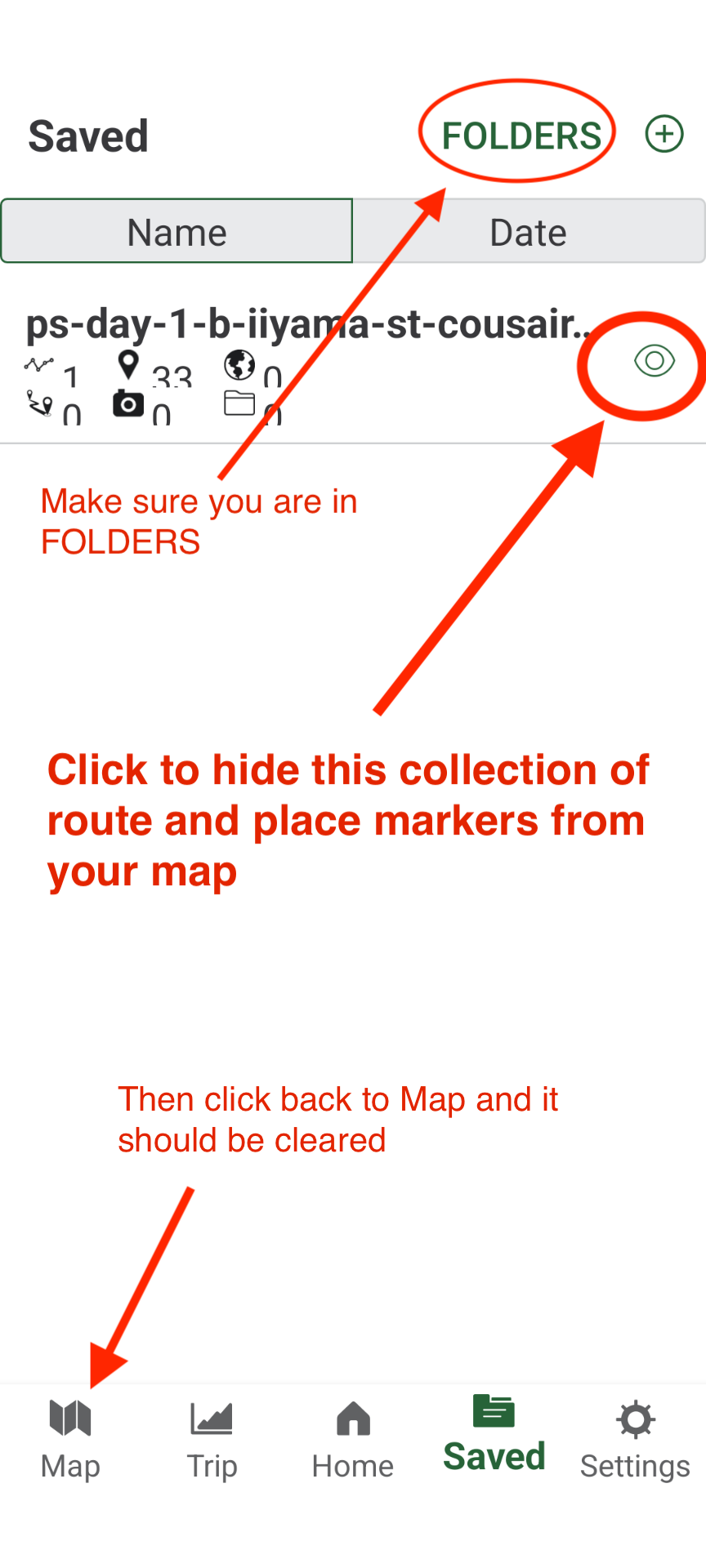
Then tap Map to return to the map.
The previous day's track and place markers should no longer be displayed.
You do not need to delete the route. You can make it visible again later by returning to Saved, selecting Folders, and tapping the eye icon again.